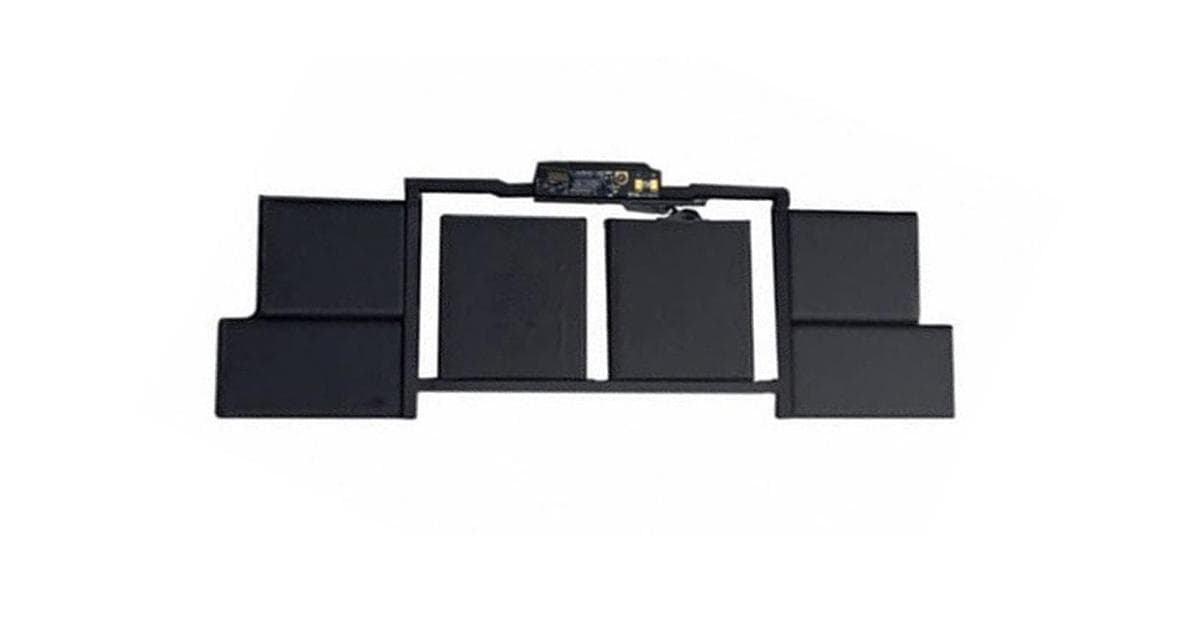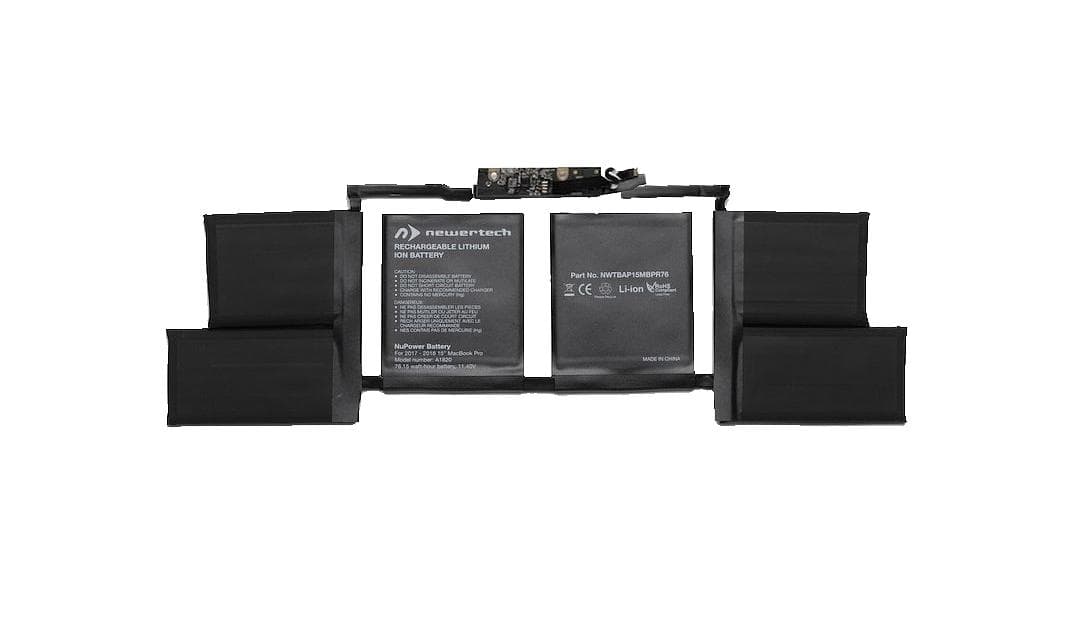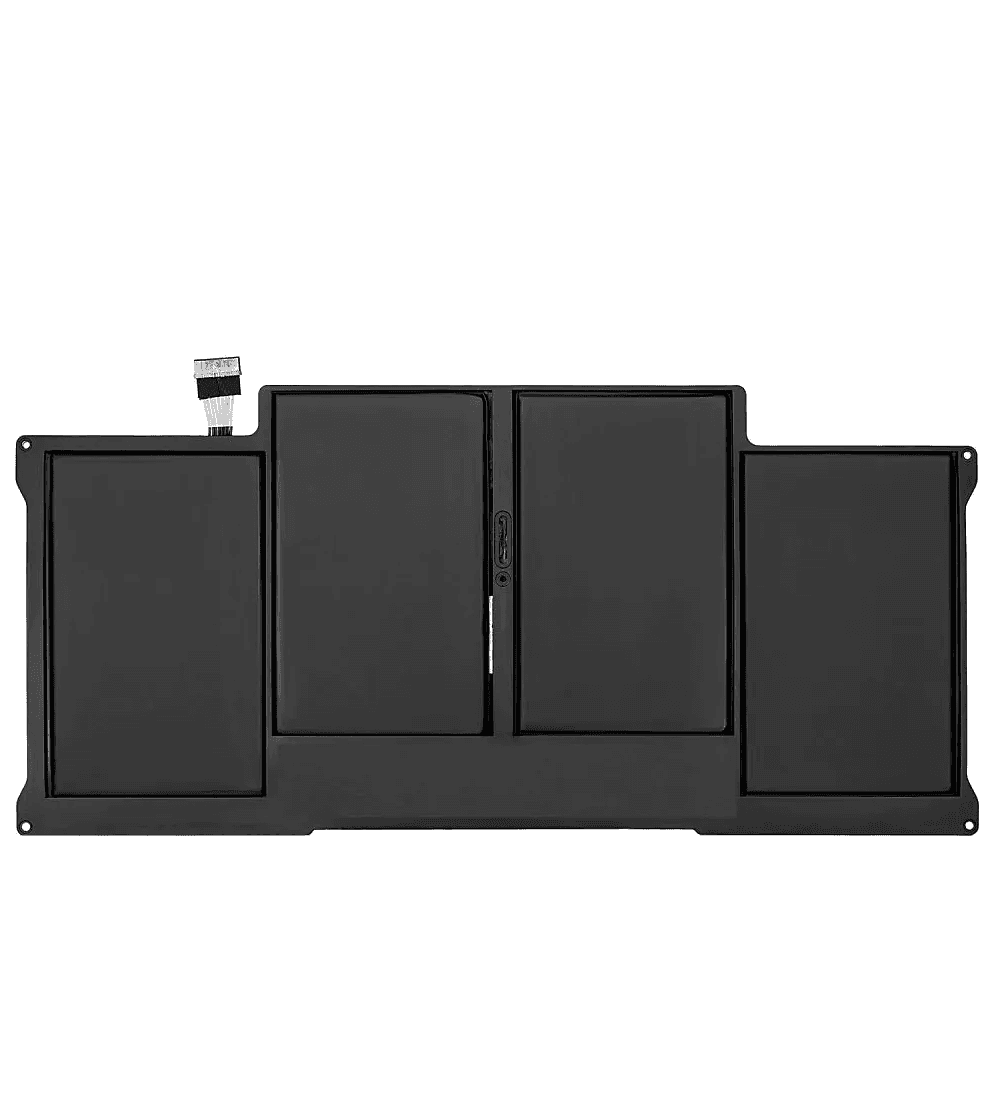
MacBook Battery Care: The Complete Apple Guide
Apple's complete guide to MacBook battery care: ideal temperature, the right charger, macOS settings, daily habits, long-term storage, and common myths that actually damage your battery.
What "chemical age" means for your battery
Every lithium-ion battery has a natural life cycle, regardless of how carefully you use it. Each time you charge and discharge the equivalent of 100% (a "charge cycle"), the battery ages chemically a little more — its maximum capacity gradually decreases. Apple designs MacBook batteries to retain up to 80% of their original capacity after 1,000 full charge cycles under normal conditions.
That means some wear is unavoidable, but the speed of that wear isn't fixed. Heat, spending long periods at very high or very low charge, and poor-quality charging accelerate chemical aging well beyond the normal rate. The guidelines below are aimed at exactly that: keeping your battery's chemical age as close as possible to the actual number of cycles you've put it through.
You can check the current state from System Settings → Battery → Battery Health. It shows maximum capacity as a percentage of the original, and if service is needed you'll see a "Service Recommended" notice.
Ideal temperature range
Apple places particular emphasis on operating temperature — it's the factor that affects battery chemical age the most. The ideal range for your MacBook is between 16°C and 22°C. Exposing it to temperatures above 35°C isn't a momentary risk — it can permanently reduce battery capacity, even after just a few hours of exposure.
The same applies, to a lesser degree, to very low temperatures: battery performance drops temporarily in the cold, though it doesn't cause permanent damage the way heat does. Avoid leaving your MacBook in a car during summer, near a heat source, or in direct sunlight for extended periods.
macOS itself recognizes the risk: if battery temperature rises too much while charging, it automatically limits charging above 80% until the device cools down. If you see charging "stuck" at 80% for no obvious reason, this is usually why. If you charge your MacBook inside a protective case, make sure heat isn't getting trapped underneath — many cases, especially leather or very enclosed ones, block the chassis's natural cooling.
The right charger makes a real difference
It's not just "how much" but "how" you charge. Always use the genuine Apple charger that came with your MacBook, or one with equal or greater wattage. A charger with lower wattage than your model needs will charge very slowly — and if you're also using the device for demanding work at the same time, it may not keep up at all, leaving the battery running in a state of continuous deep discharge.
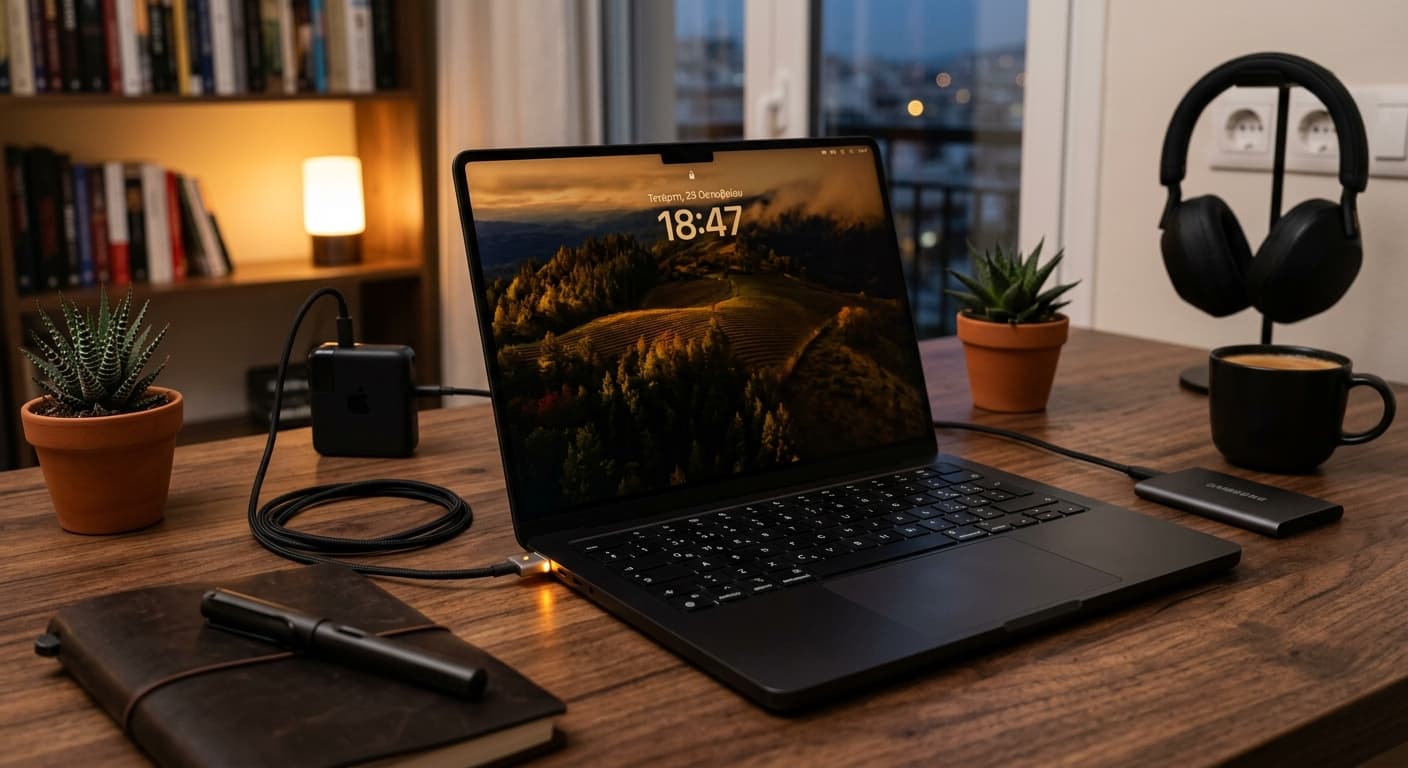
On modern MacBook Pro models with MagSafe 3, prefer charging via MagSafe whenever possible: it doesn't take up a Thunderbolt/USB-C port you might need for something else, and the magnetic connector safely disconnects if someone trips on the cable — instead of pulling the MacBook off the table. Charging via USB-C (Power Delivery) works just as well as an alternative, as long as the charger and cable are properly certified.
Avoid cheap, uncertified third-party cables and chargers. Beyond the obvious safety risk (overheating, and in extreme cases even fire), poor-quality chargers often deliver unstable voltage, which stresses the battery's charging circuitry over time. If you need a replacement cable or charger, choose one with MFi (Made for iPhone/iPad/Mac) or USB-IF certification, not the cheapest option you can find.
One last detail: the fast charging offered by Apple's higher-wattage chargers doesn't harm the battery — it's specifically designed to be safe. You don't need to avoid fast charging out of fear it might "burn out" the battery.
macOS settings that make a difference
Keep macOS updated — Apple frequently includes improvements to power management and charging algorithms in every new release, often without you even noticing.
Turn on Optimized Battery Charging from System Settings → Battery. The system learns your daily habits using machine learning, and deliberately delays charging past 80% when it predicts you'll stay plugged in for many more hours — for example, when you work all night with your MacBook on the mains. This keeps the battery from sitting at a constant 100% for hours, one of the most stressful states for its chemistry.
On newer Apple Silicon Macs there's an even more direct option: Charge Limit, in the same menu. It lets you manually set a maximum charge level — e.g. 80% — and the battery simply never exceeds that percentage, no matter how long it stays plugged in. It's ideal if your MacBook stays almost permanently connected at a desk as a stationary workstation, where it never actually needs a full 100%.
Daily habits that make a difference
Screen brightness is one of the biggest power draws — keep it at the lowest comfortable level, especially when running on battery. Disconnect external drives and USB accessories when you're not using them, since they keep drawing power from the battery even when you're not touching them. And if you use your MacBook to charge your iPhone or Apple Watch over USB, make sure the computer itself is plugged into the mains — otherwise you're draining its own battery for the sake of the other device, often without realizing it.
You don't need to keep dozens of browser tabs or standby apps open "just in case" — every active background process keeps the processor busy and draws power. Check periodically which apps are consuming the most energy from the Battery section of System Settings.
Common myths that actually damage your battery
Many habits considered "good care" for older battery technologies (nickel-based) are actually counterproductive for the modern lithium-ion batteries in Macs.
You don't need to fully drain the battery before recharging it. Lithium-ion batteries have no "memory effect" — on the contrary, frequent deep discharges to 0% stress them more than partial charges do. It's better to charge whenever convenient, even from 60% to 90%.
Leaving your MacBook on the charger overnight doesn't "burn out" the battery. macOS automatically stops charging at 100% and manages it intelligently from there — especially with Optimized Battery Charging enabled. What actually stresses the battery isn't time spent plugged in, but the combination of prolonged 100% charge with high temperature.
You don't need to unplug the charger the moment it hits 100%. Nor do you need to periodically "calibrate" the battery by fully draining it — that practice was once used to correct the percentage reading, not the battery chemistry itself, and modern Macs don't need it.
If it won't be used for a long time
If your MacBook will sit unused for more than a month — say, you're traveling or putting it into storage temporarily — Apple recommends a specific rule: charge it to 50%, not to 0% (risk of deep discharge that can leave it permanently unable to recharge) and not to 100% (staying at full charge for extended periods wears down capacity over time, even while the device is off).
Power it down completely (not just sleep) and store it somewhere cool and dry, below 30°C — not in a cabinet near a radiator or in a car's glove compartment. If storage exceeds 6 months, recharge it to 50% before continuing to store it, so it never reaches a full discharge.
When your MacBook actually needs a new battery
Even with perfect care, every battery has a finite life cycle and eventually reaches the end of it. The signs to watch for are noticeably reduced battery life compared to before, a "Service Recommended" notice under Battery Health in System Settings, unexpected shutdowns while it still shows charge remaining, or — in more serious cases — visible swelling of the case around the trackpad, which is a safety issue requiring immediate replacement.
At flip2store we handle full diagnostic testing and professional battery replacement for your MacBook, using certified parts and backed by warranty. Get in touch with us for a free assessment of your battery's condition, and let's bring your device back to its original battery life.